Project Settings
Project settings can be modified from a dialog that opens by selecting File -> Project settings…*
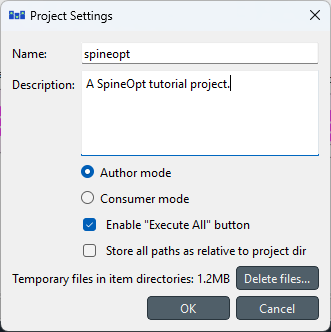
The dialog displays the name of the project, its description, some options and controls to manage temporary files in the project. Note, that the name of the project is tied to the project directory, and cannot be changed from Project settings. To rename a project, select File -> Save project as… or close the project and rename it’s directory manually.
The Description field can be used to document the project.
A project can be in one of two modes: In Author mode everything works as normal.
The Consumer mode, on the other hand,
is meant for situations where you are merely using the project as a workflow to get something done
and you are not planning to modify it.
In Consumer mode, the project.json file is never overwritten.
Some modifications will be saved to disk, however,
but into the <project dir>/.spinetoolbox/local/ directory.
This is a useful feature e.g. when the project is a Git repository.
For more information about such projects, see Sharing Project as a Git Repository.
Note, that Consumer mode may be unavailable because the project has unsaved changes
that are impossible to track in the mode.
In such cases, save the project,
or redo any changes until the project is in the same state it was saved last.
The Enable “Execute All” checkbox controls whether the Execute All button in the Execute toolbar is enabled. Disabling the button may be desirable if there is a danger that accidentally executing all project items could overwrite sensitive data.
The Store all paths as relative to project dir option is useful if the project is shared
e.g. as a Git repository.
Checking the box forces all paths in project.json to be stored as relative to the project directory.
Finally, the dialog has the Delete files… button
which removes all temporary files in the <project dir>/.spinetoolbox/items/ directory.